Codex is OpenAI’s coding agent, and it lives in the ChatGPT desktop app. With your Mana API token in a folder, it can read your story, write new lore and triggers, and upload them to Mana for you to check. A ChatGPT Plus, Pro or Business plan works best; Free and Go can try it with tighter limits.
Step 1: Install the ChatGPT App
Once per computer. No terminal needed.
- Download and install the appGo to chatgpt.com/download. On Windows, click Download for Windows: either the Microsoft Store opens (click Get or Install) or a small installer downloads (open it from your Downloads). On a Mac (macOS 14 or later), open the downloaded file and drag the app into Applications. If you still have an older app called ChatGPT Classic, use the new one: Classic has no Codex.
- Sign inOpen ChatGPT, click Continue to sign in, and sign in with your ChatGPT account in the browser window that opens.
- Switch to CodexClick the selector at the top-left of the sidebar (it says ChatGPT) and choose Codex.
Step 2: Make a Story Folder
Your token file goes in, and Codex works in there.
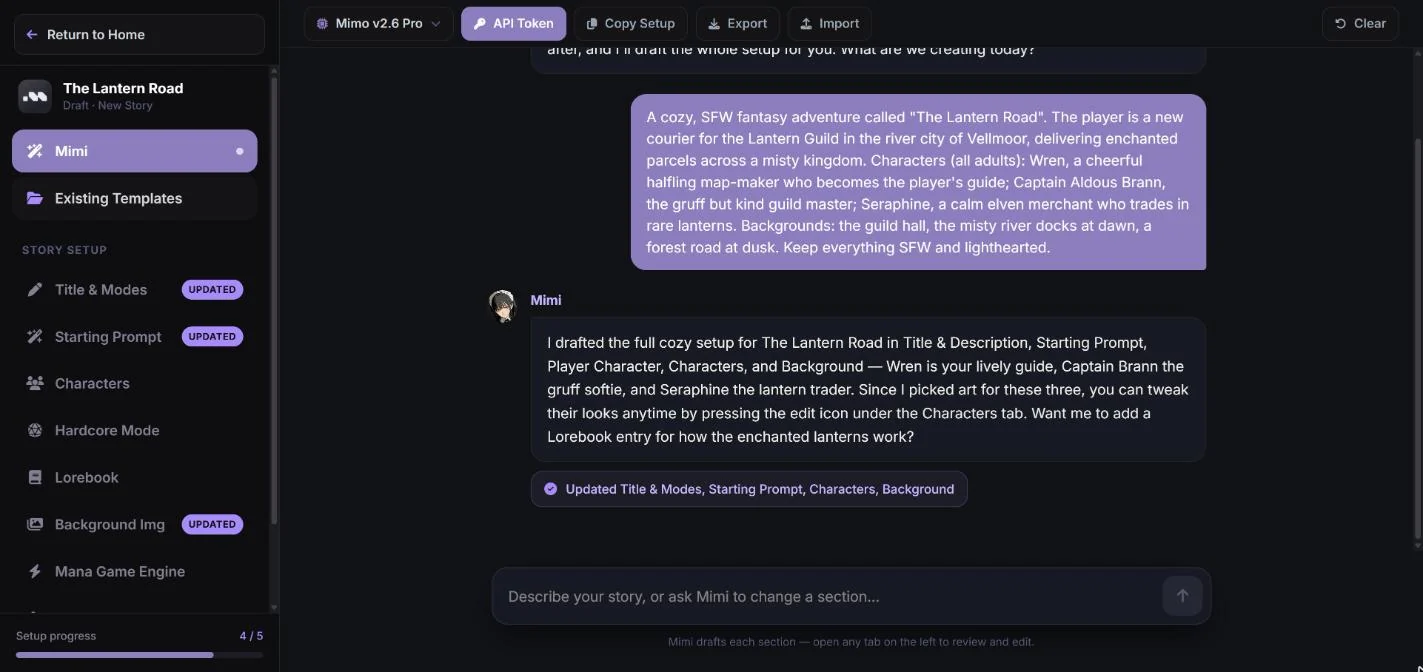
- Open your story in ManaA new story: click New Story in Mana’s left menu. That page, where Mimi helps you write, is the Story Assistant. Before you can get a token, the story needs a description, a starting prompt, at least one character with art and one background: describe your idea to Mimi and she drafts them, or fill in the tabs yourself. A story you already made: open Your Stories, find it under Templates and click Edit.
- Click API TokenYour browser downloads a small text file named after your story, like “The Lantern Road_mana_api_token.txt”. A new story is saved as a private template at this moment, so nobody else can see it.
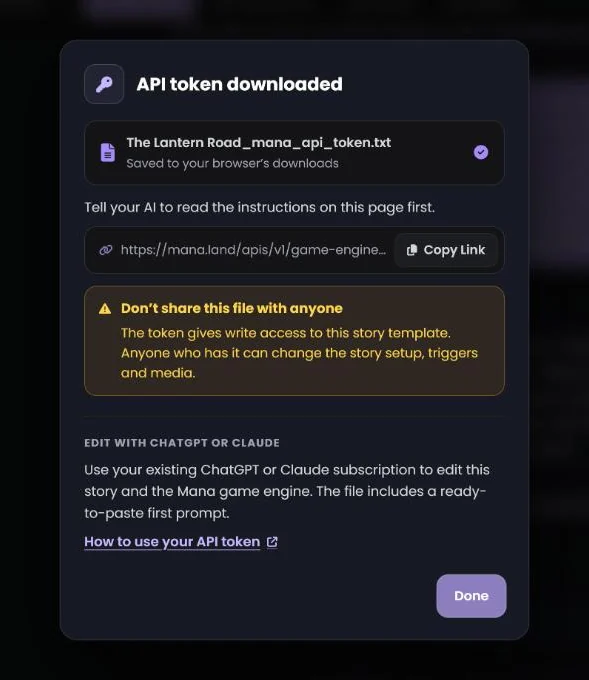
- Make a folder for the storyIn File Explorer (Finder on a Mac), open Documents and create a new folder named after your story, like “The Lantern Road”. Drag the token file from Downloads into it. Use one folder per story.
- Open the folder in CodexIn Codex, click Add new project (Ctrl+O on Windows, Cmd+O on a Mac) and pick your story folder. It appears under Projects in the sidebar: start a New chat inside it. Under the message box, make sure it says Local (work on this computer, not Cloud) and set the permissions menu to Ask for approval.
Step 3: Ask Codex for Changes
Send one message, then say what you want.
- Paste this messageWith the token file in your story folder, start things off with this message. Click Copy, then paste it into the message box. You don’t need to open the token file: the AI finds it in the folder.
Read the instructions here https://mana.land/apis/v1/game-engine/instructions , my API token is already in this folder.
- Add what you wantRight after it, in the same message, describe the change in your own words, then press Enter. Need ideas? See What to Ask For below.
- Let Codex reach ManaCodex works without internet until you allow it. Every time it needs to talk to Mana (downloading the guides, reading your story, uploading changes), it asks first. Check that the command mentions mana.land, then approve it. If you’re offered an option to allow mana.land for the whole chat, pick it so Codex stops asking.
Read the instructions here https://mana.land/apis/v1/game-engine/instructions , my API token is already in this folder.
Add two lorebook entries: how the enchanted lanterns work, and the courier rules. Then add a /parcels command that shows how many parcels I have delivered, and count one every time I hand a parcel to its recipient.
Found your token file. First I’ll download Mana’s three guides into mana-docs/ and read them.
curl -sSL https://mana.land/apis/v1/game-engine/instructions/api.md -o mana-docs/01-api.mdReading the guides takes a few minutes the first time. If Codex asks you a question along the way (which character to change, or what to do when you edited the same thing in Mana), type your answer in the message box and press Enter. When it’s done, it lists what it changed and what you should check:
The Lantern Road_mana_api_token.txtcurl -sSL https://mana.land/apis/v1/game-engine/instructionscurl … /instructions/api.md -o mana-docs/01-api.md (and 2 more guides)curl … /template/setup -o mana/orig/setup.response.jsonmana/story-setup.json+24-1mana/triggers.json+61-3curl -X POST … /template/triggers/validatecurl -X PUT … /template/setup and /template/triggersDone. Both changes are staged in Mana, not saved yet:
- Lorebook: added “Enchanted Lanterns” and “Courier Rules”.
- Triggers: a new Deliveries folder with /parcels, a delivery check after every turn, and “Parcel delivered”, which adds 1 to parcels_delivered.
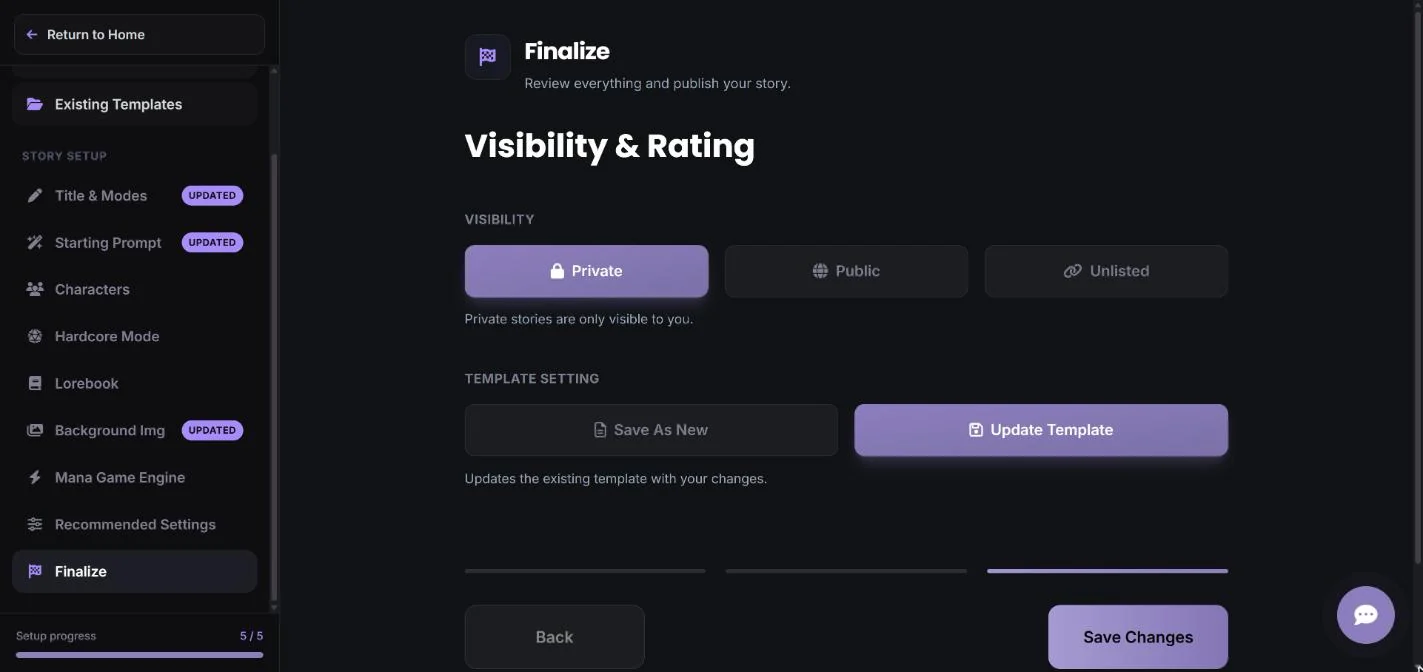
Open The Lantern Road in the Story Assistant, check the tabs marked Updated, then press Finalize → Save Changes. Start a new play to test /parcels.
What to Ask For
Write what you want the way you’d explain it to a friend. The AI reads Mana’s guides, so you don’t need to know how triggers or the story setup work. Some ideas:
Lore“Add three lorebook entries about the river city of Vellmoor: its districts, its ferries and its guilds.”Commands“Add a /parcels command that shows how many parcels I have delivered.”Gold & shop“Start me with 50 gold. Add a /shop command with three lanterns to buy, and take the gold when I buy one.”Goals“Add an objective list: deliver to the docks, then the forest road, then the castle. Tick each one off when it happens.”Characters“After I deliver five parcels, make Captain Brann warmer toward me and have him offer me a promotion.”Images“I put forest-road.webp in this folder. Upload it and show it the first time we reach the forest road.”Story setup“Rewrite the starting prompt so the story opens at the misty docks at dawn, and add a new background for it.”Check my work“Read my triggers and explain in plain words what each one does. Don’t change anything.”Ask for one feature at a time, then check it in Mana. Small requests are easier to review than one huge one.
Not sure how to do something? Ask “How would you build this? Don’t change anything yet.” first.
The AI can change your story’s setup, triggers and media. It can’t save, publish, or change visibility, tags or thumbnails: that’s always your Save in Mana.
Step 4: Review and Save in Mana
Nothing changes for players until you press Save.
The AI’s changes are staged: Mana holds them for this story, but they aren’t saved and players don’t see them yet. Keep the story open in the Story Assistant in a browser tab you can see. The page picks up each change within a few seconds, marks the changed tabs Updated, and Mimi posts a note in the chat.
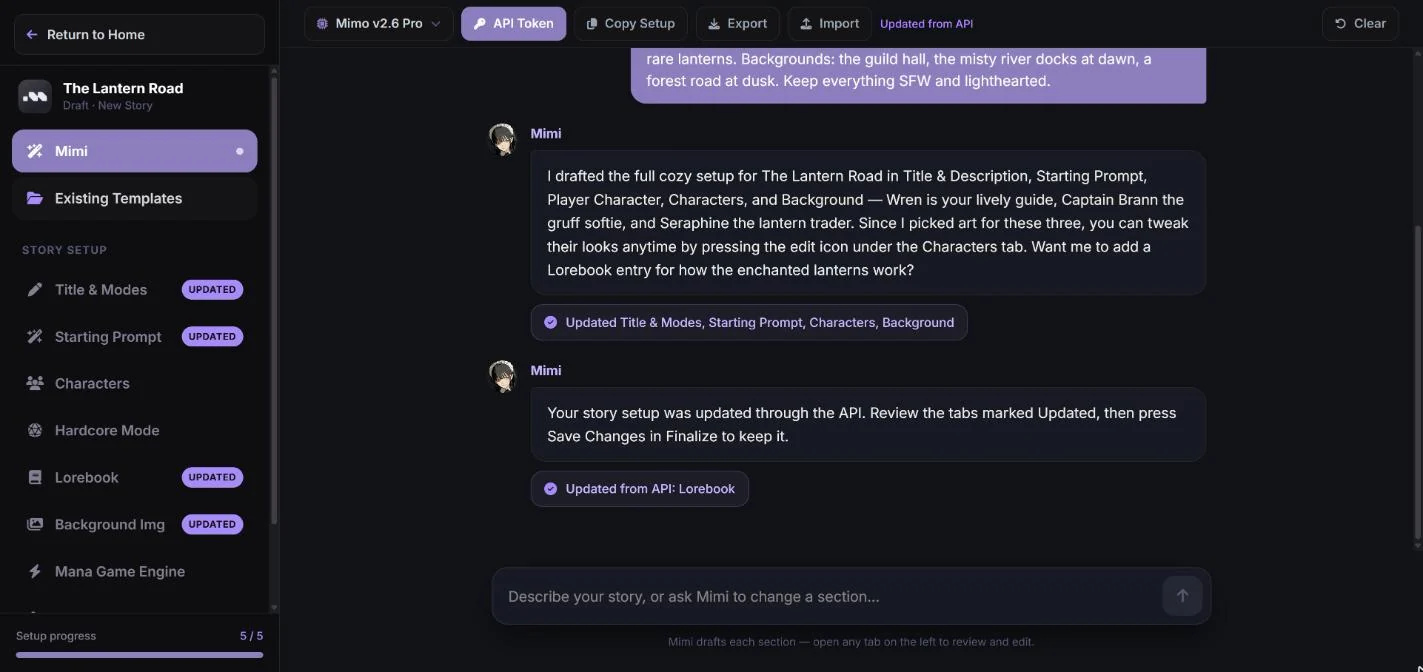
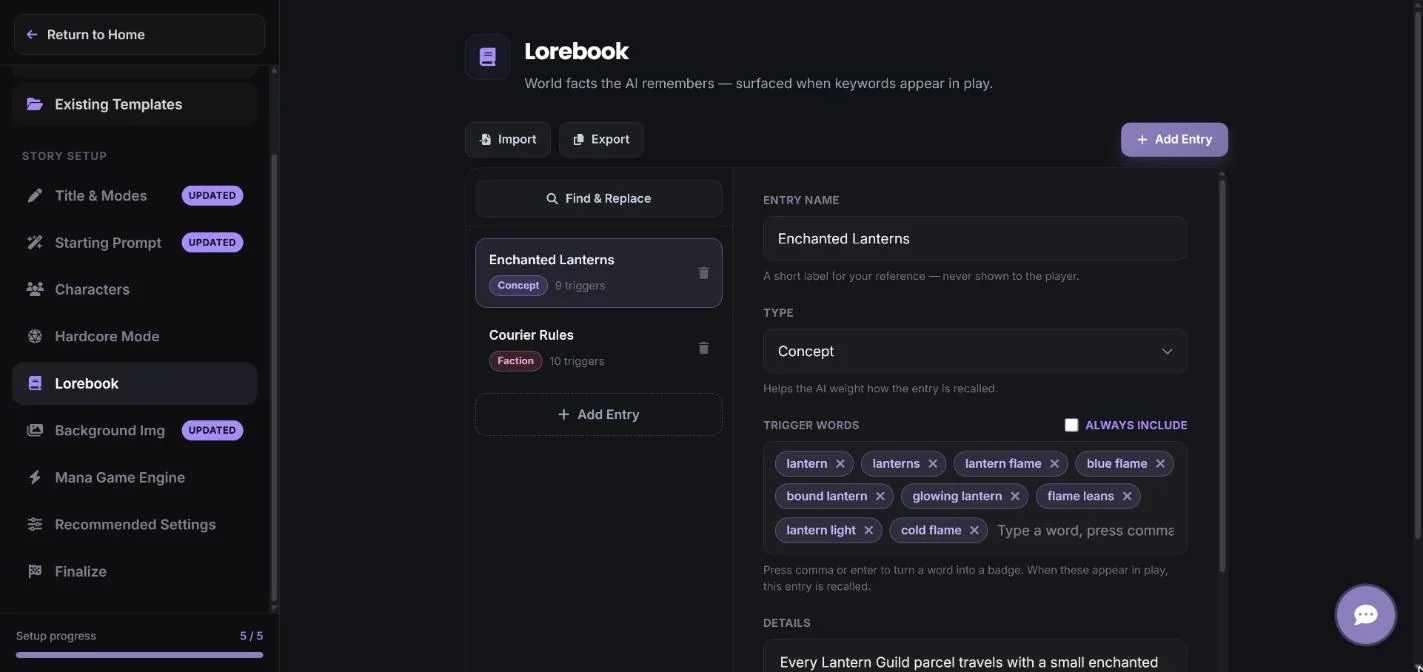
Open each Updated tab and read what changed. Here, the two new lorebook entries are in the Lorebook tab:
Trigger changes show up in the Mana Game Engine tab. Click Edit Triggers to look through them in the trigger editor, and change anything by hand there.
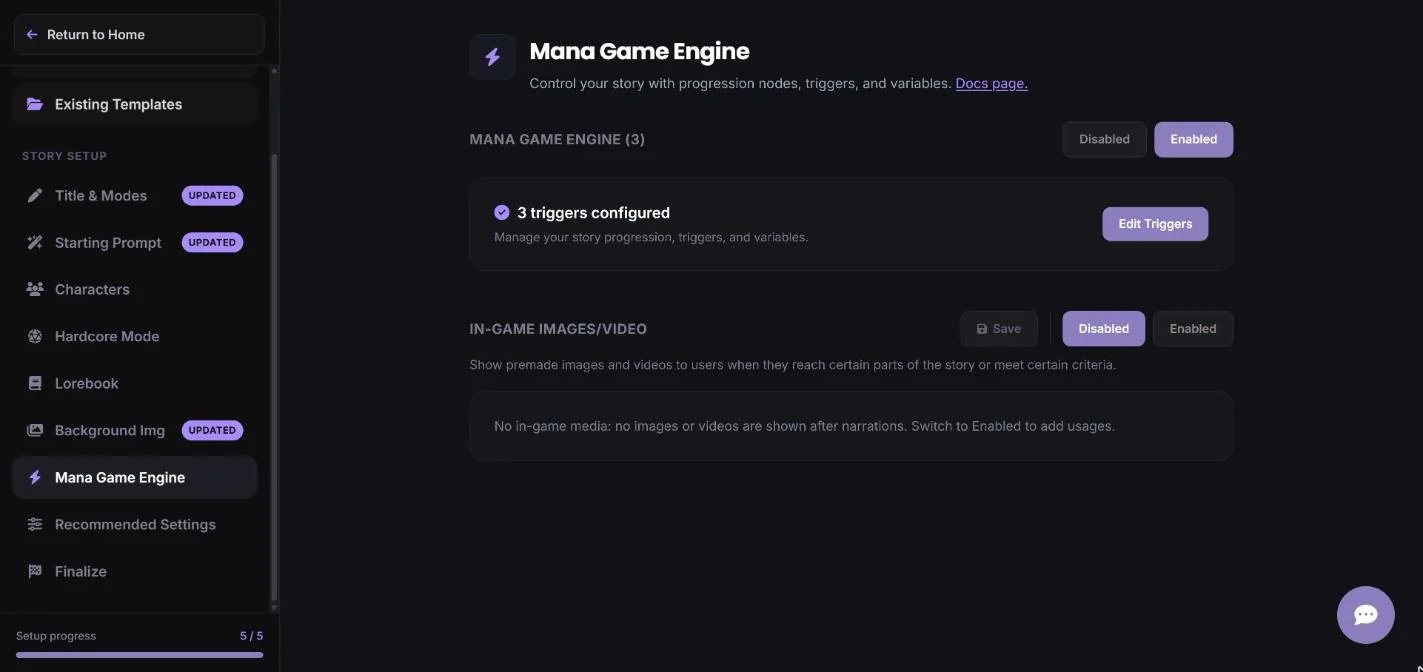
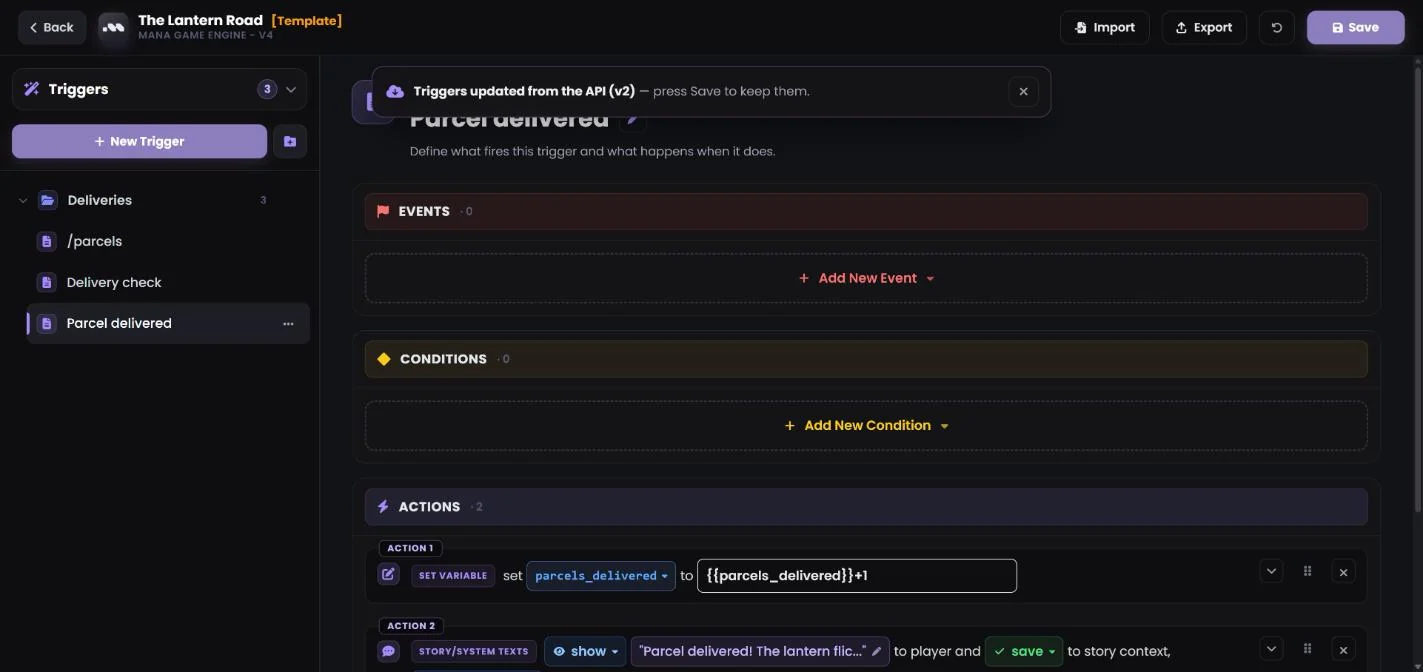
Happy with it? Open Finalize and press Save Changes. That’s the moment the changes become part of your story. (If you changed triggers by hand in the trigger editor, press Save there first.) Don’t want a change? Change it back by hand or ask the AI to undo it before you save: the page keeps the AI’s version until you do, and your next Save would include it.
Which permission setting should I use?
Ask for approval. Approve for me can refuse commands that send your token, and Full access lets Codex touch any file on your computer, so neither is a good fit here.
Codex asks before every single command. Can I turn that off?
If Codex offers an option to allow mana.land (or commands that start with curl) for the rest of the chat, pick it, and it stops asking until you start a new chat. Codex also has a setting that gives every command internet access, but it applies to all your Codex projects, so it isn’t a good fit here.
Codex says it can’t find my token file.
Start the chat inside your story’s project (under Projects in the sidebar), not the general New chat, and check that the menu under the message box says Local, not Cloud.
Can I use Codex in the terminal instead?
Yes, with a Plus plan or higher. On Windows, open PowerShell and run powershell -ExecutionPolicy ByPass -c "irm https://chatgpt.com/codex/install.ps1 | iex". On a Mac, open Terminal and run curl -fsSL https://chatgpt.com/codex/install.sh | sh. Then open a new PowerShell or Terminal window, go to your story folder (cd), type codex, choose Sign in with ChatGPT, then Trust and continue (on Windows, accept the sandbox setup if Codex offers it), and type /permissions to pick Ask for approval.
Do I need to know how to code?
No. You describe what you want in plain words. The AI reads Mana’s guides, writes the changes and uploads them. You review and save them in Mana like any other edit.
My changes don’t show up in Mana. What now?
Open the story in the Story Assistant and keep that browser tab visible: the page only picks up changes while you can see it, and it catches up within a few seconds when you switch back to it. A trigger editor you opened with Edit Triggers on a story you’re still creating doesn’t update by itself: close it and click Edit Triggers again. The older story edit form doesn’t show AI changes.
Can the AI break my story?
Nothing reaches players until you press Save in Mana, so you can always look first. If a change is wrong, change it back by hand or ask the AI to undo it before you save: the page keeps the AI’s version even if you don’t save, so your next Save would include it. Let the AI finish before you edit by hand, because an upload replaces the story setup on the page.
I clicked API Token again. Do I need to do anything?
Only if you confirmed Generate new token. That makes a new token, and the old one stops working: put the new file in your story folder (you can delete the old one) and tell the AI to use the new token file. If you pressed Cancel, nothing changed.
Does this cost Mana coins?
No. The AI runs on your own Claude or ChatGPT plan, so its work counts toward that plan’s usage limits. Mana doesn’t charge coins for reading or uploading with your token. Big requests use more of your plan’s limits than small ones.